

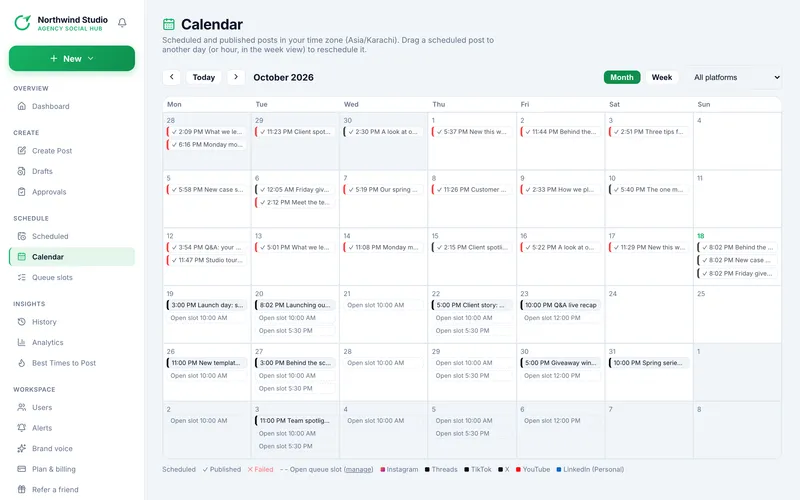
- Switch between month and week with the buttons at the top. Previous / Next and Today move around. The Platform menu filters by network.
- Everything is shown in your time zone, which the subtitle names.
- A scheduled post is a plain chip; ✓ is published; ✕ (red) is failed. A colour dot shows the platform. Published and failed posts are the last 120 days.
- Click a scheduled chip to open the Scheduled page; click a published or failed chip to open the post.
- A dashed Open slot marks a queue slot with nothing scheduled. Click it to start a post set to that time.
1. Drag to reschedule
Drag a scheduled post onto another day. In month view the time of day stays the same. In week view, drop it on an hour row to change the hour (the minutes stay). A green message says Moved to ….
The usual rules apply: at least 2 minutes from now and no more than 30 days ahead, and you must be allowed to publish to every platform on the post. If the move is refused, the chip jumps back and the reason is shown, for example Pick a time at least 2 minutes from now.
Read next
- Reschedule, publish now or cancel a scheduled post Change the time, send it out early, or remove it, and what happens to its media.
- Queue slots and the next free slot Set recurring weekly posting times and let new posts drop into the next open one.
- The Scheduled page A day-by-day timeline of everything waiting to publish, with Show more, reschedule, publish now and cancel.